
Word (macOS) Keyboard Shortcuts Quick Reference Guide
$4.95
Available via Printed/Laminated (Shipped/Physical) or PDF (Download Only):
| Quantity: | Price: |
|---|---|
| 1-49 | $4.95 |
| 50-99 | $4.10 |
| 100-499 | $3.45 |
| 500-999 | $3.25 |
| 1000+ | $2.95 |
Description
| Subject: | Word |
|---|---|
| Versions: | macOS |
| Shortcuts: | 181 |
| Pages: | 2 |
| Dimensions: | 8.5 x 11″ |
| Availability: | Printed & Laminated or PDF Download |
| ISBN: | 978-1-958446-48-5 |
Product Description
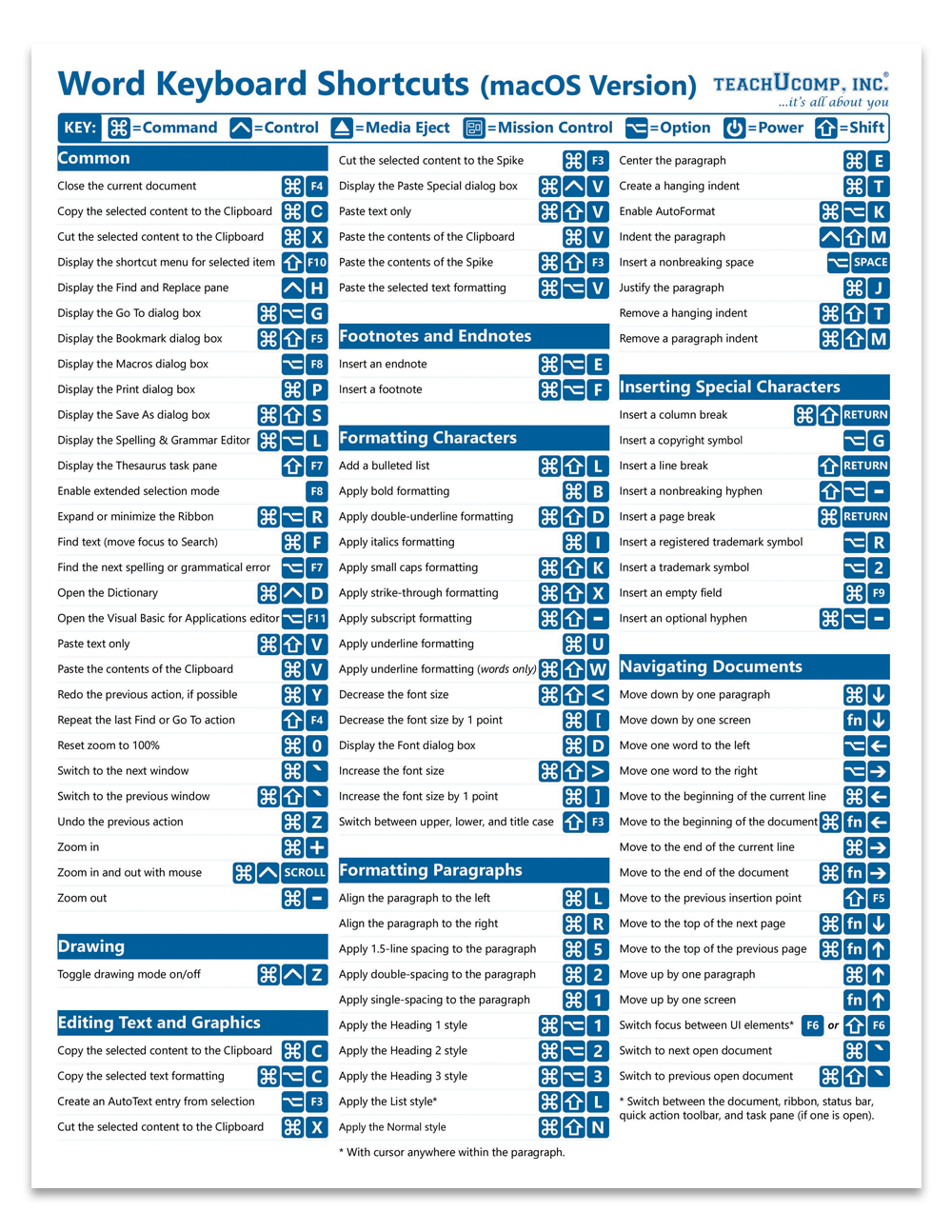
Designed with the busy professional in mind, this 2-page quick reference guide provides 181 keyboard shortcuts for Microsoft Word for macOS. When you need to find a shortcut, you will find it right at your fingertips with this Word Keyboard Shortcuts Quick Reference Guide. Clear and easy-to-use, quick reference cards are perfect for individuals, businesses and as supplemental training materials.
Shortcuts Included:
Common
Close the current document
Copy the selected content to the Clipboard
Cut the selected content to the Clipboard
Display the shortcut menu for selected item
Display the Find and Replace pane
Display the Go To dialog box
Display the Bookmark dialog box
Display the Macros dialog box
Display the Print dialog box
Display the Save As dialog box
Display the Spelling & Grammar Editor
Display the Thesaurus task pane
Enable extended selection mode
Expand or minimize the Ribbon
Find text (move focus to Search)
Find the next spelling or grammatical error
Open the Dictionary
Open the Visual Basic for Applications editor
Paste text only
Paste the contents of the Clipboard
Redo the previous action, if possible
Repeat the last Find or Go To action
Reset zoom to 100%
Switch to the next window
Switch to the previous window
Undo the previous action
Zoom in
Zoom in and out with mouse
Zoom out
Drawing
Toggle drawing mode on/off
Editing Text and Graphics
Copy the selected content to the Clipboard
Copy the selected text formatting
Create an AutoText entry from selection
Cut the selected content to the Clipboard
Cut the selected content to the Spike
Display the Paste Special dialog box
Paste text only
Paste the contents of the Clipboard
Paste the contents of the Spike
Paste the selected text formatting
Footnotes and Endnotes
Insert an endnote
Insert a footnote
Formatting Characters
Add a bulleted list
Apply bold formatting
Apply double-underline formatting
Apply italics formatting
Apply small caps formatting
Apply strike-through formatting
Apply subscript formatting
Apply underline formatting
Apply underline formatting (words only)
Decrease the font size
Decrease the font size by 1 point
Display the Font dialog box
Increase the font size
Increase the font size by 1 point
Switch between upper, lower, and title case
Formatting Paragraphs
Align the paragraph to the left
Align the paragraph to the right
Apply 1.5-line spacing to the paragraph
Apply double-spacing to the paragraph
Apply single-spacing to the paragraph
Apply the Heading 1 style
Apply the Heading 2 style
Apply the Heading 3 style
Apply the List style
Apply the Normal style
Center the paragraph
Creating a hanging indent
Enable AutoFormat
Indent the paragraph
Insert a nonbreaking space
Justify the paragraph
Remove a hanging indent
Remove a paragraph indent
Inserting Special Characters
Insert a column break
Insert a copyright symbol (©)
Insert a line break
Insert a nonbreaking hyphen
Insert a page break
Insert a registered trademark symbol (®)
Insert a trademark symbol (™)
Insert an empty field
Insert an optional hyphen
Navigating Documents
Move down by one paragraph
Move down by one screen
Move one word to the left
Move one word to the right
Move to the beginning of the current line
Move to the beginning of the document
Move to the end of the current line
Move to the end of the document
Move to the previous insertion point
Move to the top of the next page
Move to the top of the previous page
Move up by one paragraph
Move up by one screen
Switch focus between UI elements
Switch to next open document
Switch to previous open document
Outlining in Outline View
Collapse text under a heading
Demote a paragraph
Demote the paragraph to body text
Expand/collapse all body text/headings
Expand the text under a heading
Move the selected paragraphs down
Move the selected paragraphs up
Promote a paragraph
Show headings by specified level
Toggle first line vs full body text
Reviewing Documents
Insert a comment
Move to the beginning of a comment
Move to the first comment (Reviewing pane)
Move to the end of a comment
Move to the last comment (Reviewing pane)
Turn change tracking on or off
Selecting
All document content
Cursor to beginning of line
Cursor to beginning of paragraph
Cursor to beginning of document
Cursor to bottom of screen
Cursor to bottom of window
Cursor to end of document
Cursor to end of line
Cursor to end of paragraph
Cursor to top of screen
Multiple non-adjacent items
Text
Word to the left
Word to the right
Selecting: Extending Selections
Expand the selection
Extend the selection in selection mode
Reduce the selection
Select the nearest character to the left
Select the nearest character to the right
Select vertical text block
Start extending the selection in selection mode
Stop extending the selection in selection mode
Turn extend selection mode on and off
Tables
Add a new row to bottom of table
Insert a new paragraph in a cell
Insert a Tab character in a cell
Move to first cell in the column
Move to first cell in the row
Move to last cell in the column
Move to last cell in the row
Move to next cell and select its content
Move to next row
Move to previous cell and select its content
Move to previous row
Tables: Resizing Columns Directly in a Table
Equally resize columns to the right
Move a single column line
Proportionally resize columns to the right
Retain column sizes, change table width
Tables: Resizing Columns with the Ruler
Equally resize columns to the right
Move a single column line
Proportionally resize columns to the right
Retain column sizes, change table width
Tables: Selecting Table Elements and Table Content
Extend selection to adjacent cells
Select a row
Select the content in the next cell
Select the content in the previous cell
Working with Fields
Insert a DATE field
Insert a LISTNUM field
Insert a PAGE field
Insert a TIME field
Insert an empty field
Lock a field
Move to next field
Move to previous field
Run GOTOBUTTON or MACROBUTTON
Toggle a field code and its result
Toggle all field codes and their results
Unlink the current field
Unlock a field
Update linked source data
Update the selected fields
Zoom and Adjust View
Reset zoom to 100%
Zoom in
Zoom in and out with mouse
Zoom out
Changing System Preferences
Changing System Preferences for Keyboard Shortcuts (lesson)
You may also like…
-
 Select options This product has multiple variants. The options may be chosen on the product page
macOS Keyboard Shortcuts Quick Reference Guide
$4.95 -
 Select options This product has multiple variants. The options may be chosen on the product page
Excel (macOS) Keyboard Shortcuts Quick Reference Guide
$4.95